Introduction
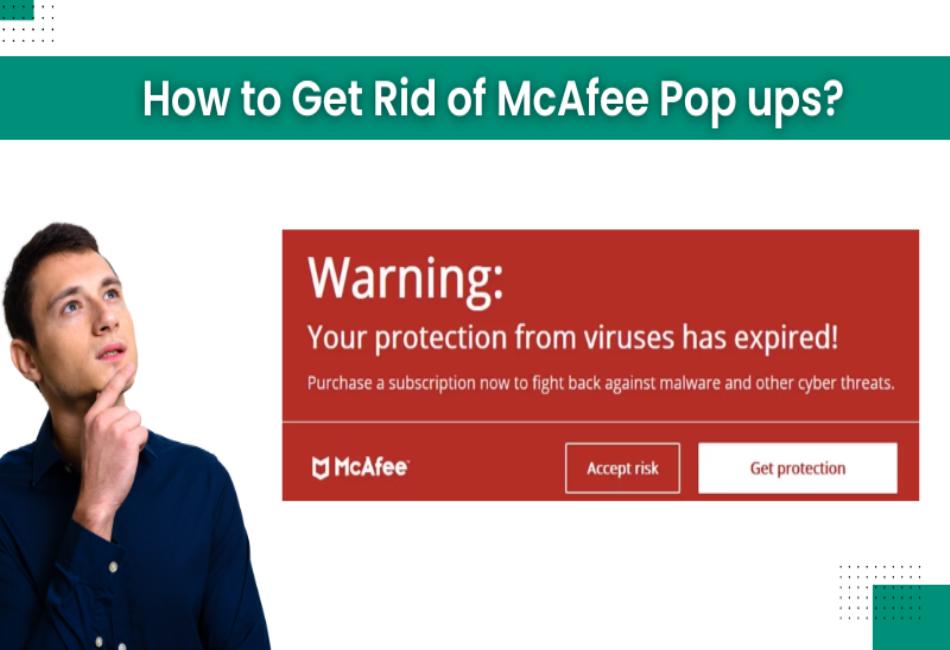
McAfee is a popular anti-virus program, but to many computer users, the notifications can become irritating. These nonstop notifications always seem to pop up to remind you about subscription renewals, security updates, or promotional offers — and while some are helpful, they can seem too much when they’re too frequent.
It’s also crucial to be able to distinguish between legitimate McAfee alerts and offers and fake or scam pop-ups. Real alerts usually originate directly from the McAfee software on your device, while the fake ones most often pop up on your web browser, in an effort to get you to click on unsafe links or download malware.
Whether you’re using Chrome, Windows, or a Mac, these persistent pop-ups can really make you digress from your workflow, slow you down while browsing, and you might also be giving yourself unnecessary stress as to the safety and security of your device. Understanding why they happen and how to control or prevent them is the first step toward enjoying a smooth, safe experience on the web.
1. Why Do McAfee Pop-Ups Keep Appearing?
McAfee’s pop-ups are frequent, and you might find that while some pop-ups are useful, others seem to do nothing but interrupt you. The first step to controlling or eradicating them is to know why they occur.
Subscription Reminders and Renewal Alerts
A subscription reminder is also one of the major causes of the McAfee pop-up. If your license is about to expire, set to expire, or has expired, you may have received notices that the software warns you to renew. These pop-ups might persist until you renew the subscription or uninstall the software.
Security or Virus Warnings
McAfee is programmed to safeguard your computer, so it sends out warnings when it discovers a possible virus in downloads or an unsafe website, but ignores it when it comes to files or programs on your computer. Though these warnings are totally valid and can be quite useful, they do sometimes seem to pop up a little too frequently, particularly if your browsing habits get them to repeat.
Promotional Notifications
Another well-known type of McAfee pop-up is promotional ads. These often promote upgrades, new products or features. Although McAfee means for them to educate users, many simply feel they’re annoying to have appear at all, since they come up when there’s nothing explicitly wrong with their security.
Fake McAfee Ads/Pop-Ups from Untrustworthy, Malicious Sites
Not all McAfee pop-ups originate from the actual program. Fake pop-ups are typically produced by malicious websites that want to appear to be an official McAfee alert. Typically, these scams try to convince a user to click an unsafe link, divulge personal information, or download a malicious file. One particular connection of this type is web browsers like Chrome or Safari.
Read : Fintechasia Error Codes: A Complete Guide to Troubleshooting and Fixes
2. How to Get Rid of McAfee Pop-Ups (Windows)
If you do use Windows, McAfee pop-ups can also be very disruptive, frequently emerging during browsing, gaming, or work. Luckily, there are several effective ways of reducing or even eliminating them.
Turn off notifications in McAfee settings
- Launch the McAfee app on your computer.
- Head into Settings → General Settings and Alerts.
- Find the Informational Alerts / Protection Alerts section.
- Disable those extraneous notifications, which are not specifically about your system’s security.
It will let you keep the important alerts of the virus and decrease the constant alerts.
Stop Promotional Alerts from the App
McAfee frequently sends pop-ups about upgrades or new products. To disable these:
- Open McAfee.
- Navigate to Settings → General Settings → Alerts.
- Uncheck or disable Promotional Alerts or similar options.
This reduces the number of sales-driven messages while keeping security-focused notifications.
Disable Background Processes from Task Manager
Occasionally, running McAfee in back background brings the pop-ups back. To manage them:
- Right-click the Taskbar and click on Task Manager.
- Find the McAfee-related programs under the Startup tab.
- Disable unwanted processes at boot by right-clicking and choosing Disable.
This isn’t an uninstall of McAfee, but it should stop the annoying pop-ups you get every time you boot your computer.
Uninstall McAfee if Not Needed and Use Windows Defender
Alternatively, if you just want to keep things simple, you can delete McAfee altogether. Windows 10 and Windows 11 include Windows Defender, which is a solid antivirus tool at the bare minimum. To uninstall:
- Visit Control Panel → Programs → Uninstall a Program.
- Select McAfee and click Uninstall.
- Reboot the system in order for the changes to take effect.
When it’s removed, its replacement Windows Defender is turned on for a cleaner, pop upm free experience.
3. How to Get Rid of McAfee Pop Ups on Mac
While less frequent than on Windows, McAfee pop-ups can still be an annoyance for Mac users. Fortunately, macOS provides simple ways to control them, whether you want to reduce notifications or remove the software entirely.
Open McAfee Preferences → Adjust or Disable Alerts
- Launch the McAfee Security app on your Mac.
- Go to the Preferences or Settings section.
- Look for Notifications or Alerts settings.
- Disable promotional or informational alerts, while keeping essential virus/security warnings active.
This ensures you only get notified when there’s a real threat.
Manage Notifications in macOS (System Preferences → Notifications)
- Click the Apple Menu → System Preferences → Notifications & Focus.
- Find McAfee from the list on the left.
- Turn off Allow Notifications or change the alert style to None.
- You can also turn off McAfee badges, banners, or sounds.
This method also means that pop-ups are blocked at the system level, cutting down those annoying distractions while you’re working or browsing.
Remove McAfee Software if You Prefer Mac’s Built-in Protection
macOS has XProtect and other preloaded security protections that leave most people well-protected against malware. If you find McAfee unnecessary:
- Open the Applications folder.
- Look for the McAfee Uninstaller tool (or drag Kafee to Trash, if there isn’t such an app).
- Then, follow the prompts to finish the uninstallation.
- Restart your Mac.
Once it is, your Mac will be dependent on its native protections, which are lightweight and pop-up free.
4. How to Get Rid of McAfee Virus Pop Ups
McAfee virus alerts may be helpful when they identify legitimate threats, but they also may be distracting when they show up too frequently or suss out trivial menaces. The trick is to make sure you can tell real alerts from unnecessary ones, and it involves tweaking a few settings to ensure a smoother experience.
Recognizing Real vs. Unnecessary Virus Alerts
- Genuine Alerts: Typically, these alerts are when McAfee blocks a virus, suspicious downloads, or an unsafe website. These should not be ignored.
- Extraneous Alerts: Some pop-ups blow trivial threats out of proportion or serve as scans yet to be run. They are not harmful, but they can be annoying interruptions.
Reducing Virus Pop-Ups by Updating McAfee
Outdated antivirus software may produce repetitive or unnecessary alerts. To fix this:
- Open the McAfee application.
- Go to Settings → Updates.
- Ensure your virus definitions and software are up to date.
Regular updates improve detection accuracy and reduce false or excessive alerts.
Adjust Virus Alert Settings in the App
You can fine-tune which alerts you see by changing settings inside McAfee:
- Open McAfee → Settings → General Settings and Alerts.
- Locate Protection Alerts or similar options.
- Uncheck or disable notifications for low-risk threats or repeated scan reminders.
This way, you’ll only be notified when there’s a genuine security concern.
Alternative Antivirus Options
If McAfee’s malicious pop-ups are still intolerable, I recommend using another antivirus:
- Windows Users: Windows Defender (also built-in, gives you on-time protection without exploring pop-ups).
- Mac Users: Use built-in defenses like XProtect, or a more run-on-the-fly solution, like Malwarebytes.
The best antivirus software fits your needs—some focus on stopping viruses in their tracks, while others concentrate on minimizing the load on your system.
5. How to Get Rid of Fake McAfee Pop Ups
Not all McAfee ads are authentic. Most of these are fake alerts by harmful websites or adware, misleading users to click unsafe links, get malware, or pay for useless software. These phony pop-ups increasingly pop up in web browsers, be they Chrome, Safari, or even Edge. It’s increasingly important to learn to recognize and block them.
Identifying Fake McAfee Alerts
- Browser popups: Real McAfee notifications always come from the installed application. If the pop up opens in a new tab or window of your web browser, it’s probably fake.
- Dubious URLs: Inspect that web address. Phishing emails typically originate from unknown or misspelled domains (e.g., “mcafee-secure. xyz”).
- Time is Key: Most counterfeits trigger fake pop-ups, which often play on fear: “Your PC is infected!” or “Click here immediately!”.
- Bad Design & Errors: A poorly designed site filled with broken images, pixelated logos, or misspelled text is going to warrant some serious scrutiny.
Steps to Block Fake McAfee Pop Ups
- Clear Cache and Cookies
- Open your browser settings.
- Clear browsing data, especially cached images, files, and cookies.
- This helps remove hidden scripts that trigger fake alerts.
- Use Built-in Pop-Up Blockers
- Chrome: Go to Settings → Privacy and Security → Site Settings → Pop-ups and redirects → Block.
- Safari: Enable Block Pop-Ups under Preferences.
- Edge: Open Settings → Cookies and Site Permissions → Pop-ups and redirects → Block.
These settings stop most unwanted pop-ups before they appear.
- Install Ad-Block or Anti-Malware Extensions
- Popular extensions like uBlock Origin or AdGuard help filter malicious ads and pop-ups.
- Anti-malware add-ons add extra protection against harmful scripts.
- Run a Full Malware Scan
- Fake McAfee alerts can be a sign of an adware infection.
- Use your current antivirus (McAfee, Windows Defender, or Malwarebytes) to run a deep system scan.
- Remove any suspicious files or programs flagged during the scan.
By combining browser settings, ad-blocking tools, and system scans, you can eliminate fake McAfee pop-ups and reduce your risk of falling victim to scams.
Read Also : Art Thunderonthegulf Craft: A Celebration of Creativity, Culture, and Community
6. How to Get Rid of McAfee Pop-Ups in Chrome
Google Chrome is the most popular place you find McAfee pop ups real or fake. The former are common due to installed McAfee browser extensions; the latter due to visited websites causing redirects or ads to be shown. But thankfully, Chrome has a few built-in tools to help you manage or get rid of them.
Remove McAfee Extensions or Add-Ons
- Open Chrome and click the three-dot menu in the top-right corner.
- Go to More Tools → Extensions.
- Look for any McAfee-related add-ons.
- Click Remove if you don’t use them.
Some McAfee extensions push frequent alerts; removing them reduces pop-up frequency.
Clear Browsing Data to Stop Recurring Ads
- Go to Settings → Privacy and Security → Clear Browsing Data.
- Select Cookies, Cached Images/Files, and Site Data.
- Choose a time range (e.g., “All Time” for a deep clean).
Clearing this data helps eliminate scripts that trigger repeated pop-ups.
Enable Chrome’s Pop-Up and Redirect Blocker
- Navigate to Settings → Privacy and Security → Site Settings.
- Scroll to Pop-ups and Redirects.
- Select Don’t allow sites to send pop-ups or use redirects.
This prevents malicious websites from flooding your browser with fake McAfee alerts.
Reset Chrome Settings if Needed
If pop-ups persist, resetting Chrome can remove hidden settings changes caused by adware:
- Go to Settings → Reset Settings → Restore Settings to Their Original Defaults.
- Confirm by clicking Reset Settings.
This action clears unwanted configurations while keeping your bookmarks and saved passwords safe.
By removing extensions, cleaning browsing data, and using Chrome’s built-in security tools, you can minimize or completely stop McAfee pop-ups within the browser.
7. Extra Tips for a Smooth Experience
While turning on or dealing with McAfee pop-ups can fix most issues, there are a few best practices that you can and should put in place to ensure that your experience is better defended and more intune overall.
Keep Antivirus Updated
Whether you’re using McAfee, Windows Defender or some other antivirus software, a program that’s the very latest version will be better at identifying threats and produce fewer false alerts. Updated security terms also mean no warnings over and over again about a virus for the same issue if there is already a patch available.
Avoid Duplicate Antivirus Programs
The simultaneous use of more than one antivirus solution may cause incompatibilities, system slowdown, data loss, and a decreased protection level. Stick with one solid solution pr. See, to achieve a consistent user experience and to reduce the number of pop ups.
Regularly Scan for Malware
Unverified McAfee pop-ups are typically attributable to adware hiding in your system or malicious scripts. By scheduling regular system scans, you can ensure these threats are caught and deleted before they can get in the way of your browsing or deluge you with notifications.
Use System-Level Pop-Up Blockers
Both Windows and macOS include pop-up and notification control tools that come with your operating system. Tweaking these settings, you reduce interruptions from not just McAfee, but apps and sites too.
Put together these methods and the past solutions together, and you’ll develop solid shielding that you never constantly get distracted and bothered by:(and then you can surf or whatnot without the fear of this).
Read : Electric Hellcat: The Future of Dodge Muscle Cars 2025
Conclusion
Yes, McAfee pop-ups can be annoying, but the great thing is that there are effective ways to deal with them or even remove them completely on Windows, Mac, and popular browsers like Chrome. From tweaking settings in the McAfee app to turning off promotional alerts, clearing the browser data, or even uninstalling the software, there are a number of ways users can take back control of their gadgets.
For those who continue to depend on McAfee, the best option is to adjust notifications, leaving on alerts for important security issues and disabling promotions or reminders. If, however, the pop-ups are bugging you and you already have another security software installed, it may prove easier just to uninstall McAfee and trust your device’s built-in security protections, such as Windows Defender or macOS’s XProtect.
In the end, it all depends on how you feel about the alerts: deal with them if you love McAfee’s protection, or get rid of it if it no longer suits you. Either way, with a few key moves, you can sit back and enjoy a safer, distraction-free digital experience.
Frequently Asked Questions (FAQs)
Why does McAfee keep popping up on my computer?
McAfee pop-ups typically appear for subscription reminders, discounts or security warnings. Sometimes they could also come from some of the malicious websites pretending to be McAfee antivirus software to deceive users.
Can I uninstall McAfee?
Is it okay to remove McAfee if I don’t want to use it anymore? On Windows machines, the built-in antivirus is Windows Defender. It activates automatically, and it’s genuinely good at protecting the average computer.
How can I get rid of the fake McAfee pop‑up on Chrome?
McAfee fake pop-ups usually originate from suspicious websites. To block them, clear your browser cache and cookies, turn on Chrome’s pop-up blocker, install an ad-blocking extension, and do a full malware scan to check if your computer is clean or not.
And can I rely on Windows Defender or Mac’s built-in protection instead?
Absolutely. Windows Defender (Windows 10/11) and XProtect (macOS) each have good virus and malware coverage. They operate quietly in the background without bombarding you with useless pop-ups, so they are good replacements for McAfee.